

Import any Solana Wallet
How to import an existing Solana wallet into the Solflare browser extension using a recovery phrase, a private key, a Keystore file, or Quick Login.
You can import any existing Solana wallet into the Solflare browser extension with its recovery phrase, its private key, or a Keystore file. Any Solana recovery phrase works in Solflare, regardless of which wallet created it, including Phantom, Backpack, Jupiter, and MetaMask.
Recovery phrase vs private key
A recovery phrase is a list of 12 or 24 words that unlocks every wallet created from it. A private key controls only one wallet. Import with the recovery phrase when you have it, because it brings over all your wallets at once.
New to Solflare: import on the welcome screen
Open the extension, choose I already have a wallet, then Recovery phrase. Enter the words in order, separated by spaces, and set a password. If some wallets are missing, use Advanced to pick a different derivation path.
Already using Solflare: add another wallet
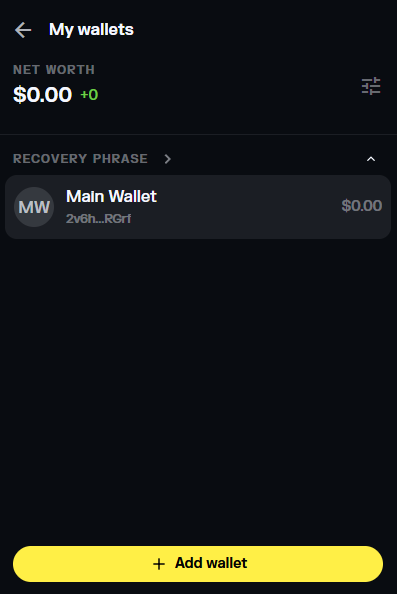
Click your profile icon to open My wallets, then click + Add wallet.
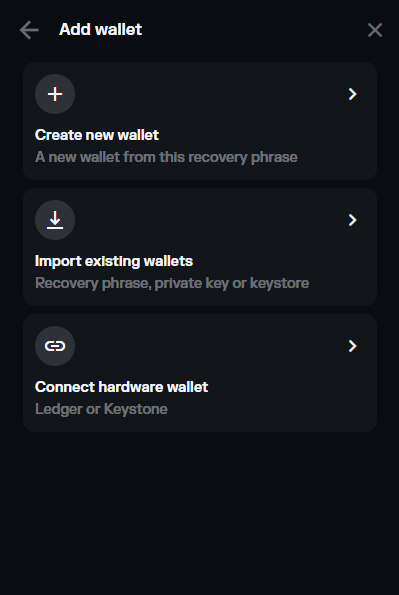
Choose Import existing wallets.
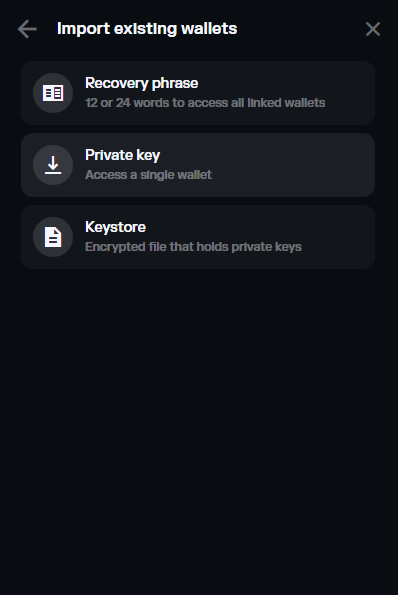
Choose Recovery phrase, Private key or Keystore.
Import with a recovery phrase
Enter your recovery phrase. Solflare scans for funded wallets, shows how many it found, and lets you import them all or choose them manually.
Import with a private key
Export the private key from your old wallet. In Phantom, this is in Settings, under the option to show or export the private key. You will need your Phantom password, not your recovery phrase.
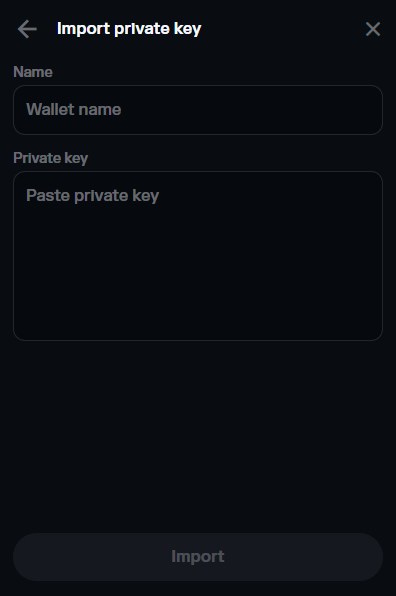
In Solflare, choose Private key, name the wallet, paste the key, and click Import.
You must import a wallet by private key again on each new computer, and if you lose the key, you can't recover the wallet.
Import a Keystore file
Choose Keystore, select the file, enter its password, and name the wallet. See Importing a Keystore file into Solflare.
Restore a Quick Login wallet
If you created your wallet with Quick Login, choose I already have a wallet, select Google, sign in with the same account, and enter your passcode. Hardware wallets are not part of the cloud backup and must be reconnected. See Import or restore a wallet with Quick Login.
Last updated
Was this helpful?